> ## Documentation Index
> Fetch the complete documentation index at: https://crossmint-wallets-docs-2-5.mintlify.site/llms.txt
> Use this file to discover all available pages before exploring further.
# Set up a Claims Page
> Deploy a website for your users to come claim your NFTs
The [minting guide](/minting/nfts/integrate/mint-tokens) showed you how to create NFTs.
In this guide you will learn how to set up a website where users can claim
those NFTs into their wallets, for free.
## Key Characteristics
* **Easy to set up**: no coding required.
* **No wallet required**: users can claim an NFT to their existing wallet, or,
if they didn't have one, enter an email address and have a wallet created on
the fly.
* **Bot protection**: comes with signature protected mint function, reCAPTCHA,
Cloudflare rate-limiting, and optional password protection.
* **Blockchain-less UX**: users don't need to sign any transaction, nor pay gas
fees.
If you want users to pay the gas fees when claiming a token, you can do so by [enabling
payments](/minting/nfts/integrate/list-for-sale) for your collection with a price of 0.
## Guide
1. [Create an NFT collection](/minting/nfts/integrate/create-collections) and navigate
to it in the console.
2. Upload NFT "templates" for all the NFTs you wish to list for claiming. You
can do so from the "NFTs" tab in the console, or by using
[the API](/api-reference/minting/template/create-template).
3. Navigate to the `Claims` entry on the left navbar in the collections page.
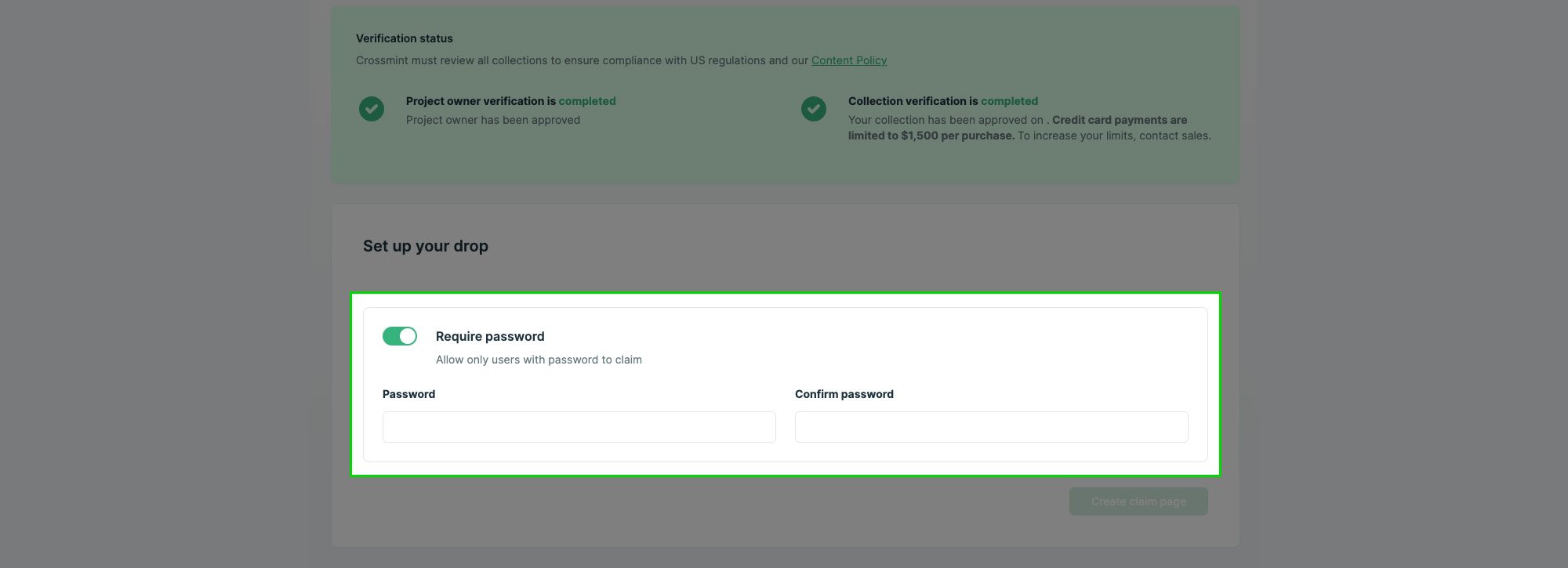
Follow the wizard to deploy a claims page. It is recommended to set a
password, so that only those who know it can claim.
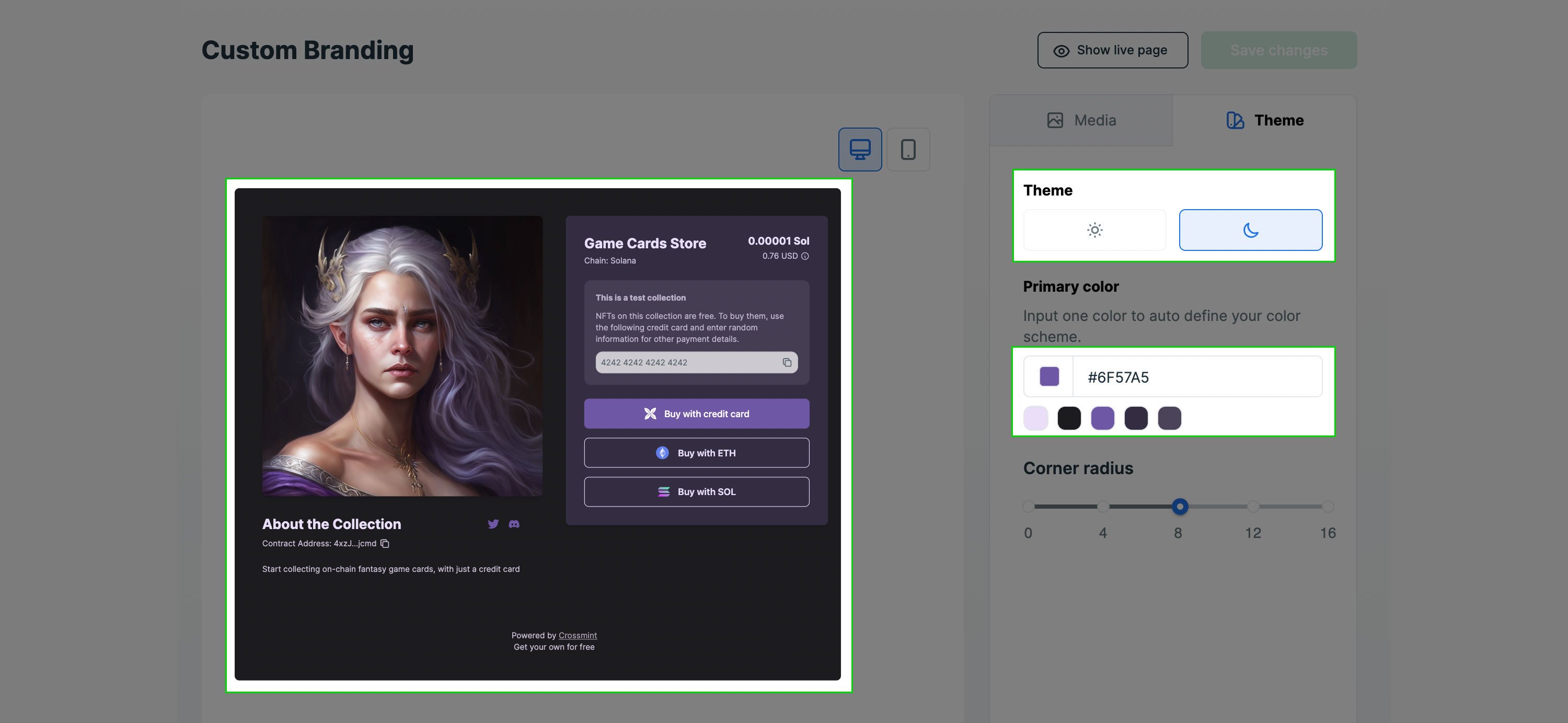
4. (Optional) Customize the branding of your page.
5. (Production only) [Verify your account and collection](/introduction/platform/account-verification). Not required in staging.
6. Share the url or QR code with your users.
### FAQs
There are multiple ways:
* The claims page shows the number of items claimed
* By setting up [webhooks](/minting/nfts/integrate/webhooks-and-status-apis) to listen to mint events
* (Coming soon) Using the Crossmint console
To prevent unwanted users from minting your NFTs, you can require a password
for the claim. This can be activated from the Claims page on the console.
 5. (Production only) [Verify your account and collection](/introduction/platform/account-verification). Not required in staging.
6. Share the url or QR code with your users.
### FAQs
5. (Production only) [Verify your account and collection](/introduction/platform/account-verification). Not required in staging.
6. Share the url or QR code with your users.
### FAQs